Getting Started
- Press the HOME softkey to return to the home screen of the X Series®
- Ensure the X Series is connected to a wireless network. Setup instructions:
- If you experience any error messages with these transmissions or need further assistance, please reference our troubleshooting guide, and contact tech support
Transmitting Readiness Test Results
Your readiness test results are used by DefibDashboard or DeviceDashboard to show the latest test results. Follow these steps to ensure the X Series can communicate successfully with your software:
AUTOMATIC SUBMISSION (requires SW version 2.32 or higher)
- Perform a 30-Joule charge/discharge test
- WAIT — it can take time to transmit. You will see the following:
- The green light on top of the X Series should illuminate
- A message should appear in the top left corner that says 'Readiness: Connecting…'
- Once the unit has finished transmitting the readiness test results it will read 'Readiness: Transmission Complete'
MANUAL SUBMISSION (requires SW version 2.34 or higher)
- Access the setup menu by pressing the Setup quick access key
- Select Device Info
- Select Readiness Test Logs Review
- Select a Readiness Test log to transmit from the list. It will have a green check mark next to it once selected
- Select the Transmit button
Transmitting Full Disclosure Logs
Your Full Disclosure Log data is used by our CaseReview or Case Transfer software. Either software can connect to your EMS agency's ePCR program through ZOLL® Online. Contact tech support to see if ePCR integration is an option for your agency and to receive help setting it up. To transfer your disclosure log data:
- From the home page, press the Log button -
- Press the Disclosure Log Transfer key -
- Either close your current case (if the current case it the one you want to transmit) or press continue to select a previous case from the (up to) 150 that are saved.
- Select up to 15 different cases (if you are just attempting to validate a connection with your server, choose a single case between 2 and 15mins in length if possible)
- When you are done selecting cases, press the HOME softkey — that will move your highlight to the Transfer key
- Press Transfer
- When the dialog box shows "Transfer Complete", select OK to return to the home screen


Transmitting 12-Leads
To share a 12-lead report with your agency or a consulting facility:
- Press the 12-lead quick access key -
- Press the 12-lead review quick access key to review the list of previously captured snapshots -
- Select the 12-lead snapshot you want to transmit
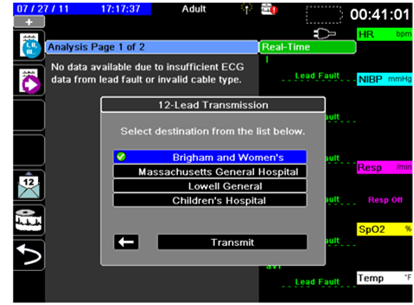
- Press the 12-lead transmission key -
- Choose one of the pre-configured distribution lists from the options presented
- A green check mark indicates the selected distribution list
- Press the Transmit button to begin the transmission. The green LED on top of the X Series should illuminate, and you will receive status messages on screen indicating the 12-lead has successfully transmitted.


Remote View
For systems with a remote view server configured, the X Series Advanced can connect and stream waveforms and physiologic data for the patient being monitored. This information can be viewed by a remote user via the ZOLL Remote View Client application. From this application, the remote user can:
- View the patient's top two waveforms and up to eight physiological parameters received from the X Series Advanced device.
- View patient alarms and equipment alerts that have been detected by the X Series Advanced device.
- View X Series Advanced device status messages.
- View patient demographic data.
- View, print, and save reports.
To begin streaming patient data:
- Press the Remote View Connect quick access key -
- Confirm your choice when prompted

When remote view is active:
- Disclosure Log transmissions are not available
- The Remote View Connect quick access key changes to a Disconnect key -
- The X Series Advanced displays the "Streaming: Active" status message
- The Green LED on the top of the X Series Advanced device lights and remains solid.

To stop streaming patient data:
- Press the Remote View Disconnect quick access key -
- Confirm your choice when prompted