The ZOLL® X Series® has three means of connecting to wireless networks:
- Wi-Fi (enabled by default)
- Cellular (disabled by default)
- Bluetooth Hotspot (aka Tethering, disabled by default)
Wi-Fi Setup (Pre-Configured Access Point Profiles)
You can pre-configure a Wi-Fi network as a supervisor and save it for a clinical user to connect to later (without them knowing or being able to edit the network information).
- >From the supervisor menu, navigate to Communications > Configure Wi-Fi
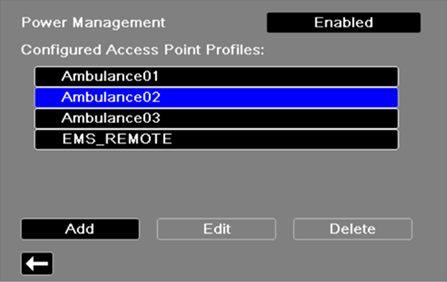
- Within this menu you can edit, add, and delete pre-saved wireless access profiles. These profiles provide your clinical users with one or more network to pick from when attempting to connect the X Series to Wi-Fi
- Select an existing profile then choose Edit or choose Add to create a new profile
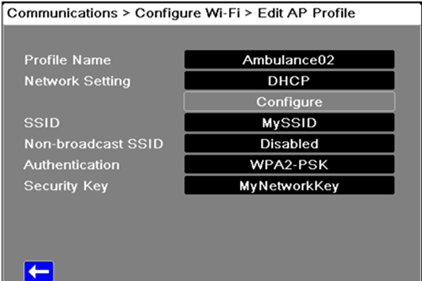
- The Profile Name is what your clinical users will see when selecting a pre-saved access point from the Wi-Fi menu. This can be anything you want, just make it identifiable for your clinical users so they know what to expect from this profile.
- Network Setting — DHCP/Static IP. If you select Static IP you will need to open the Static IP configuration menu and set the IP Address, Subnet Mask, Default Gateway, Preferred DNS server, and Alternate DNS Server, then SAVE your entries on that screen (not pictured).
- SSID — enter the network's SSID (the name of the network as broadcast by your access point)
- Non-broadcast SSID — if your network is HIDDEN, then ENABLE this setting. If your network is visible, leave this disabled.
- Authentication — WPA-PSK, WPA2-PSK, or Enterprise
- For PSK networks, enter your 8-64 character security key then SAVE
- For Enterprise networks you will need to use the additional Configuration menu that appears and choose from PEAP or TLS.
- PEAP networks utilize a User ID and Password (must be PEAPv0/v1 + MSCHAPV2). Note: some PEAP networks require you to manually import a CA Certificate for the service account credentials to be properly validated by your network controller. To import a CA Certificate, insert the USB with the certificate (.pem, .der, or .p7b) on the right side of the defibrillator, then select Load CA Certificate from USB > Select your Certificate > Load Selected
- TLS networks utilize a Private Key Password and certificate. To import the certificate, insert the USB with the certificate (must be .pfx file) then select Manage Client Certificates > Load from USB > Select the Certificate File > Load Selected
- If you still have any on-screen keyboard open, use the on-screen back arrow key to return and save your entry. Afterwards, press the HOME softkey to return to the home screen of the X Series and follow the next steps below to select your pre-configured access point and ensure it functions as expected.
Connecting to Wi-Fi using a Pre-Configured Access Point
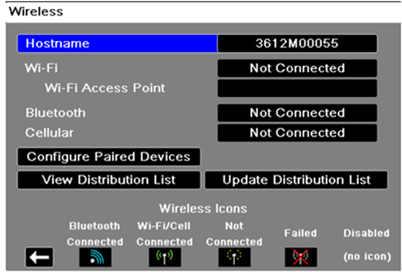
- From the home screen, select the wireless antenna icon at the top of the screen using the arrow keys. (Note: you cannot access this menu while in AED mode unless the AED mode is paused first)
- Select Wi-Fi Access Point
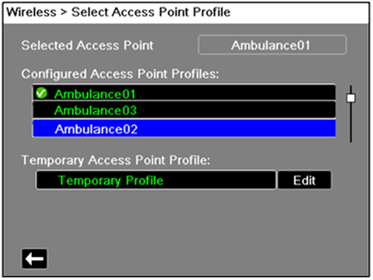
- Choose one of your Configured Access Point Profiles from the list
- Your selection should now have a green check next to it, indicating it is the active profile the X Series will attempt to connect to using the pre-saved settings.
- Press the HOME softkey. The wireless antenna icon at the top of the screen will change to one of the following icons:
- The "green battle axe" means you are successfully connected to Wi-Fi or Cellular data. The "yellow pixie dust" means you are not connected to any network. Reference our troubleshooting guide: https://www.zoll.com/en-us/service-and-support/codedatasupport/x-series/wireless-troubleshooting

Cellular Setup (Using an external USB Cellular Modem)
- From the supervisor menu, navigate to Communications > Cellular
- Enable the USB Cell Modem setting to connect your external cellular modem to the X Series, then enter the following:
- Provider Name — how you choose to refer to this cell phone provider
- Call Number — an access number sometimes referred to as Dial String
- Account Name and Password — some providers require an account name and password. If you provider does not require these fields, leave them blank.
Bluetooth Tethering Setup (Using a Cell Phone's Hotspot Data)
NOTE: this is NOT the same as connecting a Bluetooth device (like earbuds) to your phone. You CANNOT simply pair your phone to the X Series via your normal Bluetooth settings; you MUST use the tethering functionality for data service. Search for Hotspot & tethering on your phone and look for Bluetooth tethering to set up your phone for Bluetooth tethering. Not all cellular phones transmit reliably.
- Enable pairing for Bluetooth tethering from your mobile phone
- From the supervisor menu, navigate to Communications > Cellular
- Enable the Bluetooth Cell Device setting to connect the X Series to a mobile phone with the Bluetooth tethering functionality, then choose Configure:
- Select your mobile phone from the paring menu on the X Series — a green check mark indicates which device has been selected.
- It may be necessary to change the PIN on the X Series unit. Choose Change Pin, then use the numerical keypad to enter the desired PIN.
- Select Pair Now
- On your mobile phone, accept the pairing request and enter the PIN (if prompted)