Items Needed:
- R-Series Defibrillator***
- Existing Wireless Card (TESTED AND WORKING)***
- New Wireless Card***
- NOTE: If this is a brand new wireless card, you may need to submit the MAC Address to your IT Team before it will function on the network. The MAC address is printed on the back of the wireless card.
- IF REQUIRED: Copies of the Wireless Certificates on a Compact Flash Card
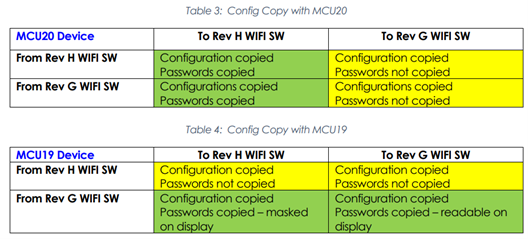
- MCU 20.01 and Wi-Fi Revision H both independently introduced a password masking feature to the R Series wireless configuration that prevent passwords from being displayed in plain text. Instead, you will see three ### signs.
- Older versions of R Series MCU (19.03 or older) and Wi-Fi cards (Revisions F or older) are not programmable on newer versions. To clarify: an already programmed wireless card of any revision CAN be used to send disclosure logs or device check history with any version of MCU. What you can NOT do is read or write Wi-Fi settings via system configuration across incompatible versions. Rev H, Rev J, and Rev K are equivalent for the sake of the compatibility table below:
- To prevent issues with reading or writing to wireless cards, you should first ensure your R Series is updated to MCU 20.01 and your wireless card is updated to Rev H or newer.
- The latest wireless revision is Rev K, which runs software version 05.02.323.0167. To order upgrade kits for your R Series defibrillators or wireless cards contact ZOLL technical support.
*** COMPATIBILITY WARNING ***
STEP 1: READ A CONFIGURED WIRELESS CARD ONTO THE DEVICE
- Enter System Configuration mode
- Press the ‘Wi-Fi’ softkey
- Install the configured wireless card - it will take a few seconds for the defibrillator to identify.
- Highlight the “Wi-Fi Region” if it is not already, then press ‘Read Wi-Fi Card’. A message “Wi-Fi Card Read OK.” will follow.
- Now, all the information from that configured wireless card should be loaded on the defibrillator.
- Remove the configured wireless card
STEP 2: LOAD NETWORK CERTIFICATES (If N/A – skip to step 3)
- Insert the compact flash card with your network’s certificate(s)
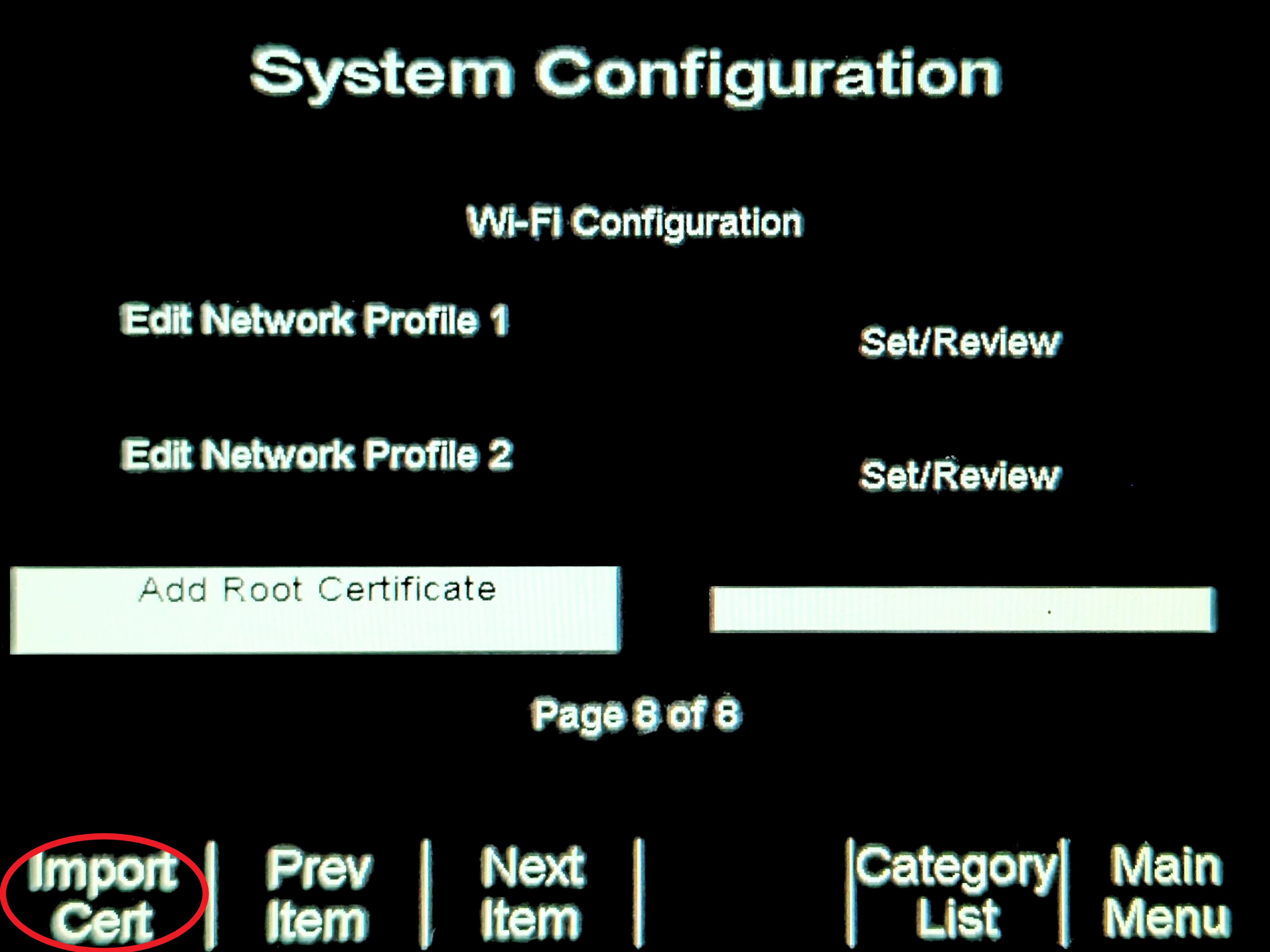
- Press ‘Next Item’ until you have highlighted the “Add Root Certificate” field
- Press ‘Import Cert’
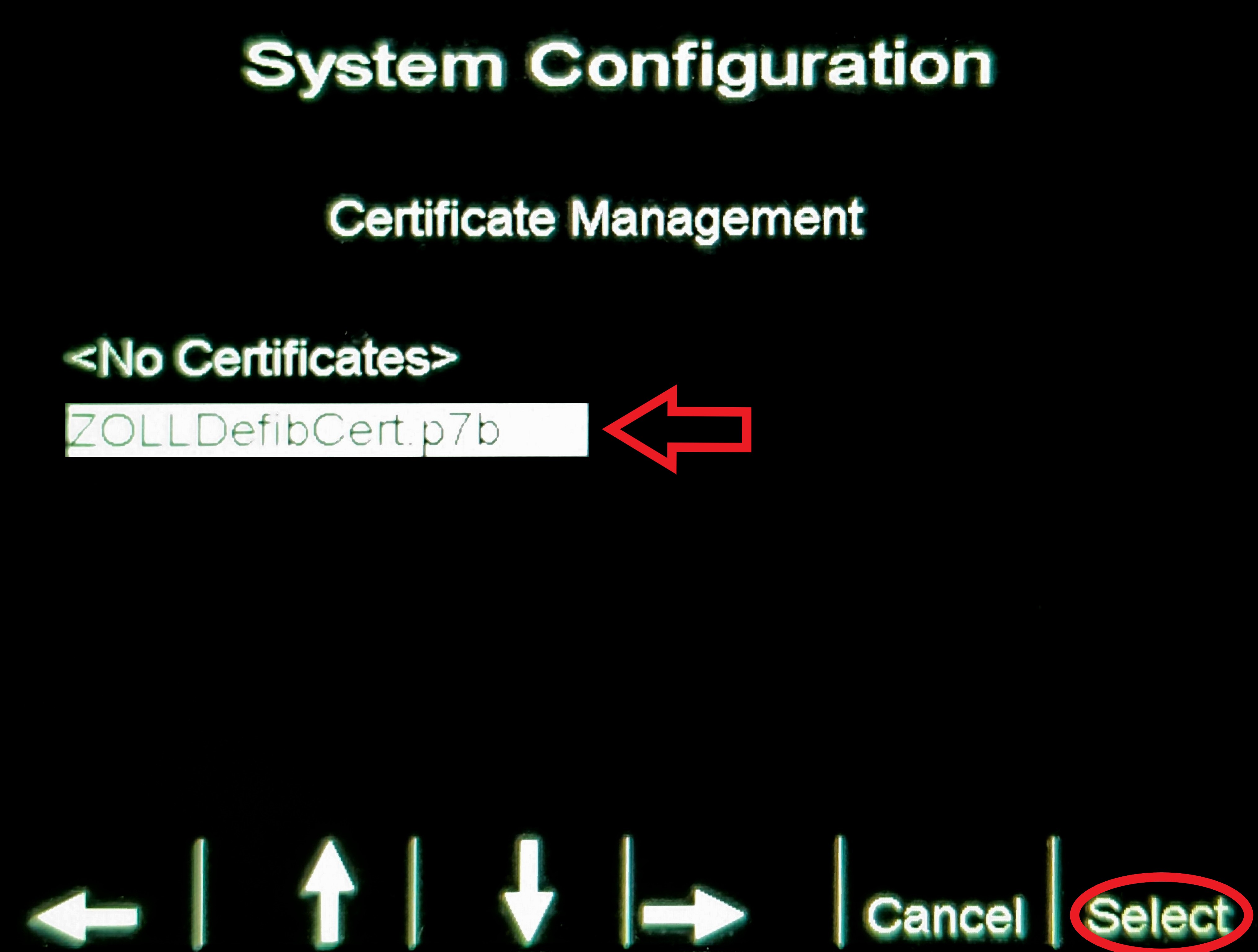
- Use the arrow softkeys to select your certificate then press ‘Select’
- The certificate is now loaded, and its name should now display next to “Add Root Certificate”
- Now remove the compact flash card
STEP 3: SAVE TO THE NEW WIRELESS CARD
- Insert the wireless card you want to program. Wait for the card to identify before making any further selections on the defibrillator (this will take approximately 10 seconds)
- Highlight the “Add Root Certificate” field if it is not already highlighted by pressing the ‘Next Item’ softkey to advance to that field on page 8 of 8.
- The “Main Menu” softkey on the right should change to say “Save to Wi-Fi card”
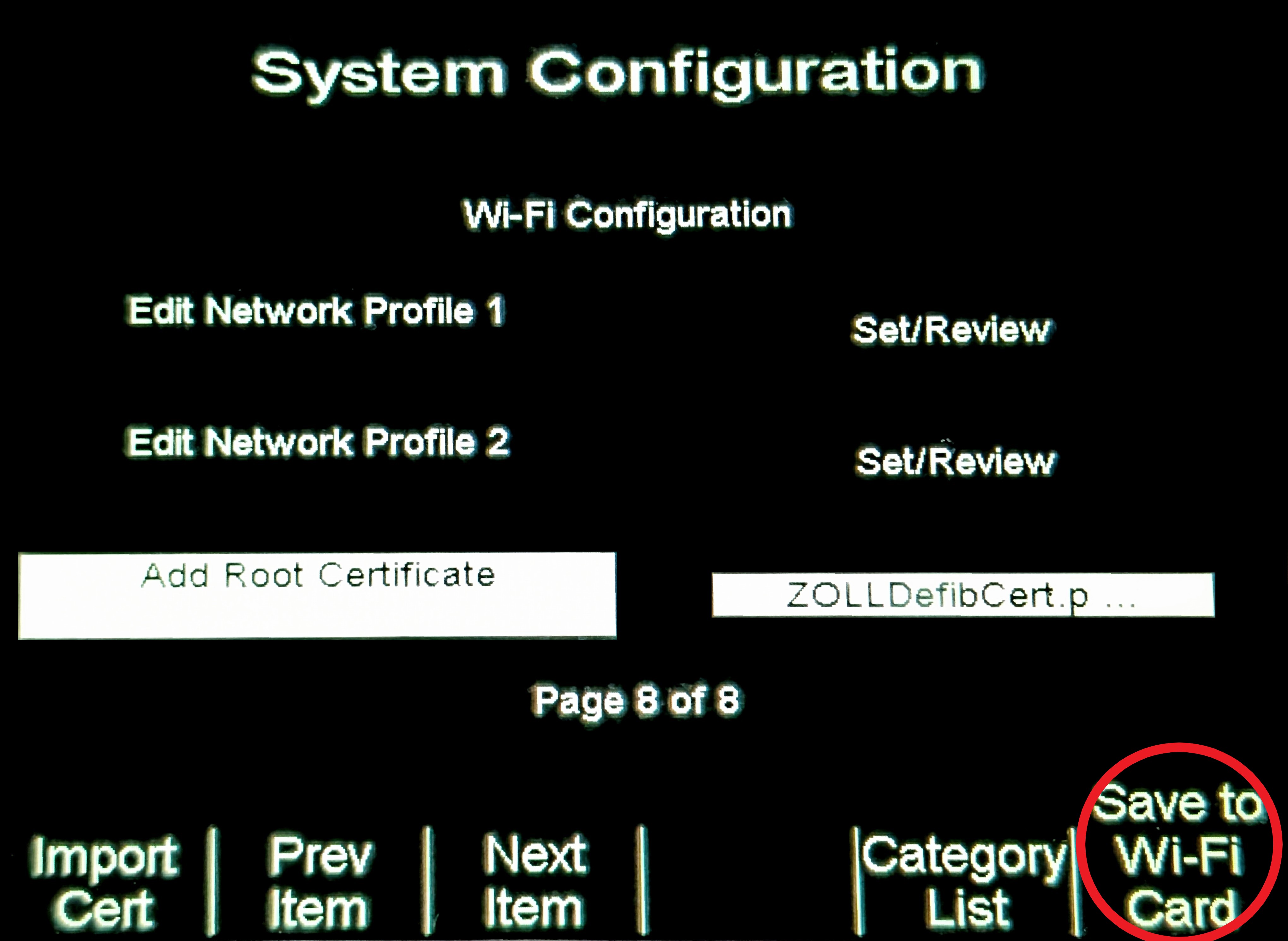
Read the rest of these instructions before continuing so you know what to expect. You will need to watch the defibrillator screen to see the status messages as they appear.
- Press ‘Save to Wi-Fi card’ and WAIT!
- You will see two messages - the first message will say ‘Writing to Wi-Fi Card’. That message will go away and approx. 10 seconds later, another message will appear.
- Always wait until after you see a SECOND message, which should say “Wi-Fi Card Write OK”
- If you missed this second message, wait 10 seconds more and hit ‘Save to Wi-Fi Card’ again and watch the screen carefully.
- After the “Wi-Fi Card Write OK” message disappears, this wireless card has now been programmed!
IF YOU HAVE:
- MORE THAN ONE CERTIFICATE TO SAVE TO THE WIRELESS CARD: repeat steps 2 and 3 as needed – selecting the other certificate(s) each time.
- MORE THAN ONE WIRELESS CARD TO PROGRAM: Remove the wireless card you just programmed and repeat step 3
- Note – we always recommend testing the first card you programmed on another defibrillator (so you can leave the defibrillator you’re using to program with open to the Wi-Fi settings page) PRIOR to programming any more cards just in case there were any errors.
Once you are done programming wireless cards, simply power off the defibrillator.