About Service Files
ZOLL Tech Support may ask you to retrieve the service files from your R Series defibrillator to investigate your ticket thoroughly. These files are specific to ZOLL and can only be opened by ZOLL Tech Support. To retrieve these files, you will need a:
- PC that can read and copy files from a USB drive
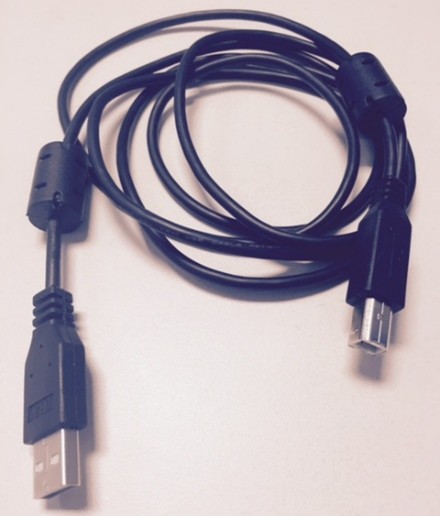
- USB-A to USB-B cable (the type often used by printers – pictured below)
How to Retrieve R Series Service Files via USB
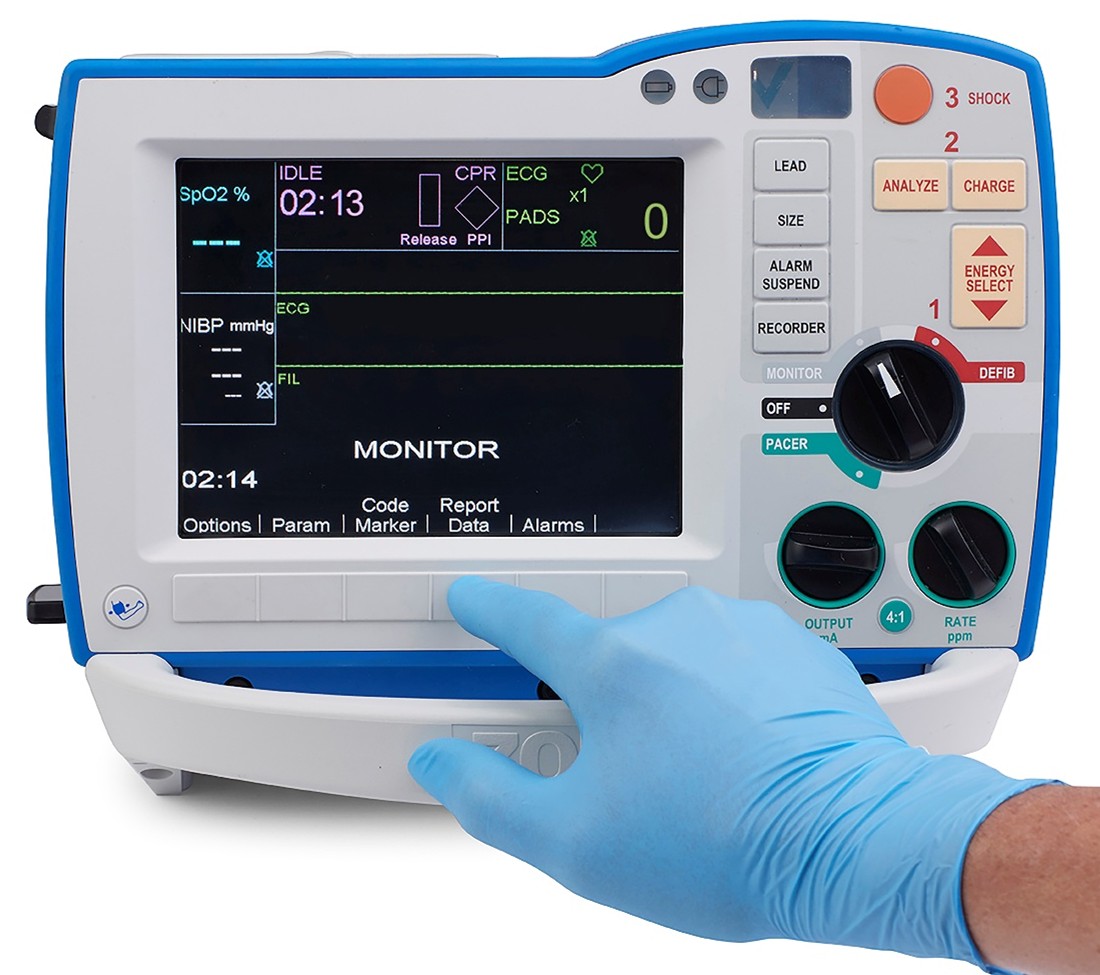
- Connect the USB cable to your PC and power on the defibrillator to MONITOR mode (R Series ALS) or power it ON and enter MANUAL MODE (R Series BLS)
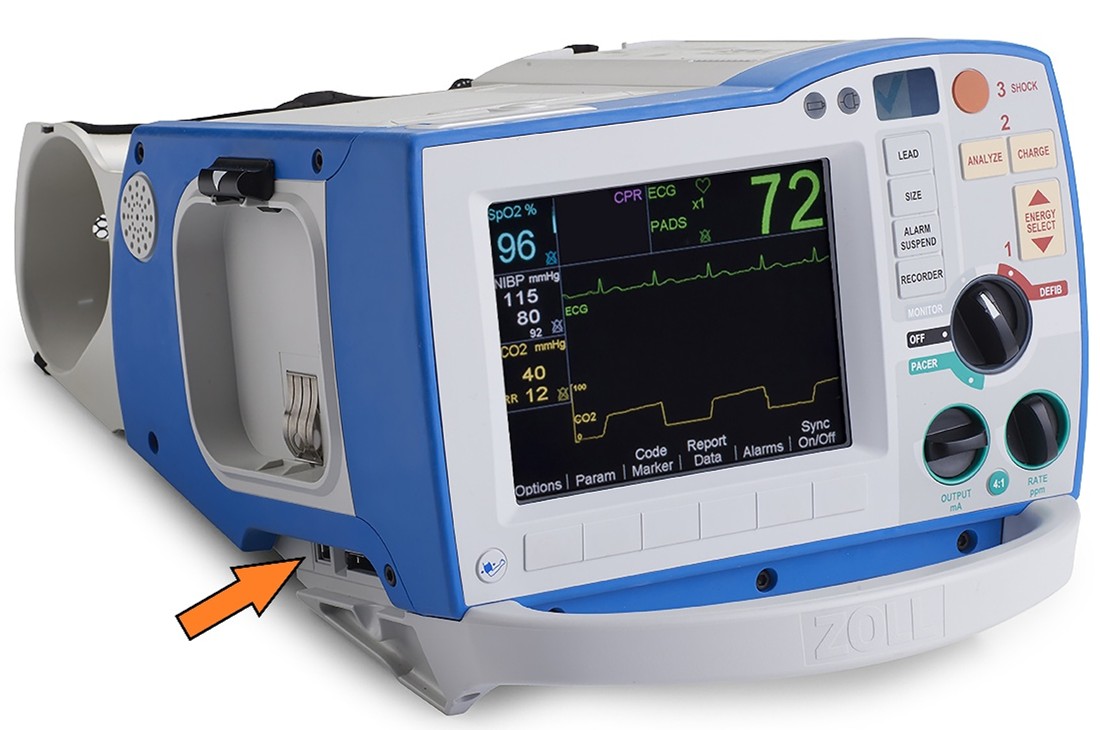
- Insert the USB into the R Series, located immediately left of the compact flash port on the left side of the defibrillator
- Press the ‘Report Data’ softkey
- Press the ‘Transfer Mode’ softkey
- Now that you are in Transfer Mode, select ‘More’
- Then, ‘Enable USB’
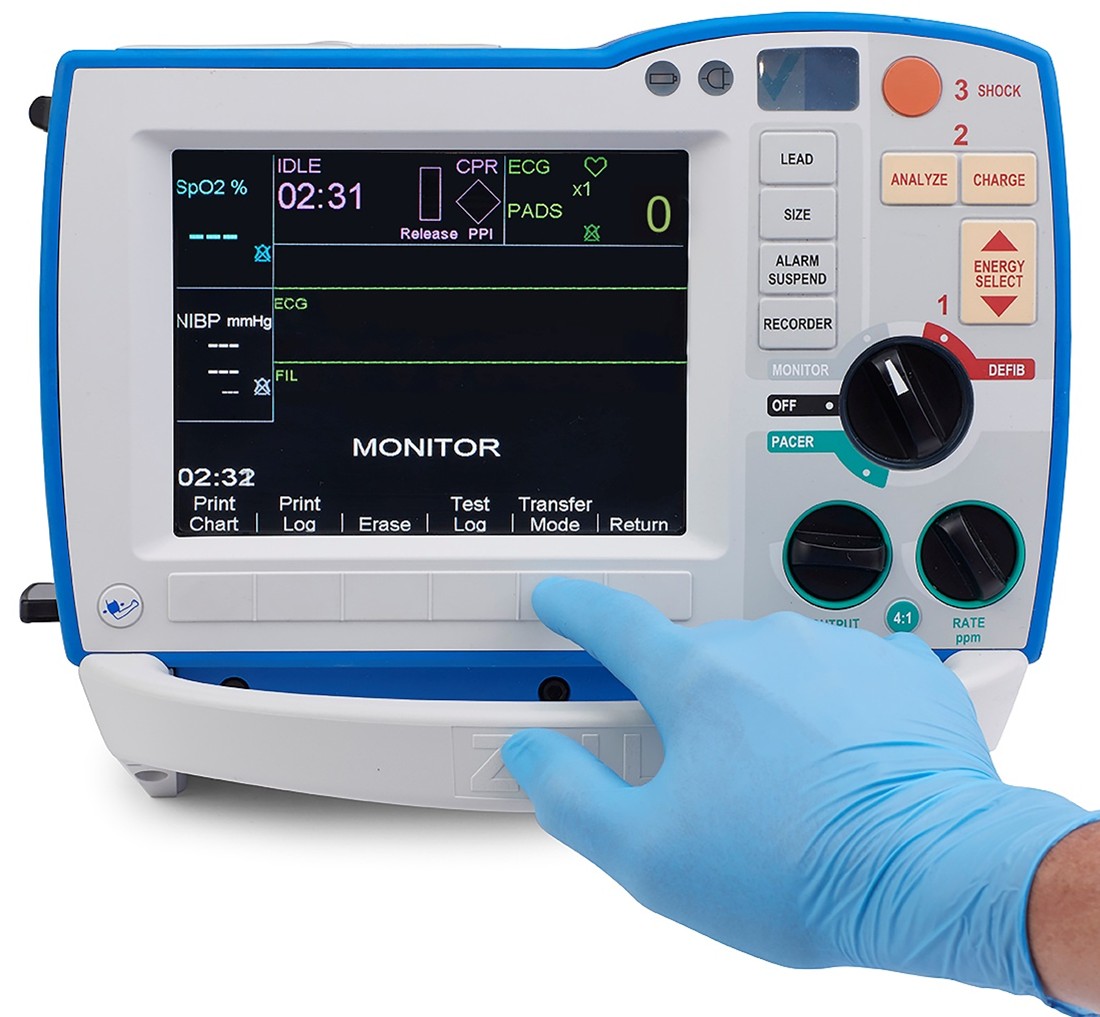
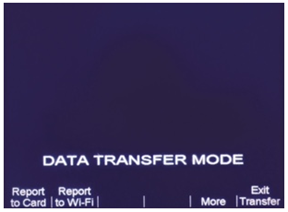
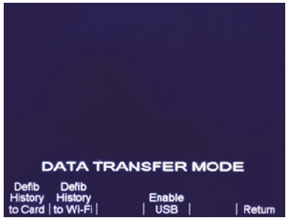
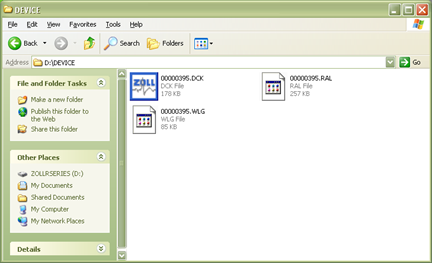
This should mount the R Series file storage to your PC as though it were any other external USB drive. Once connected, the PC will see the R Series as an external drive (shown as drive D:\ in the example below) and you can browse for files.
NOTE: if you cannot see the R Series as an external drive, try connecting to it again (Disable USB, unplug the USB cable from the R Series, then plug the USB back in, and Enable USB)
To save these files to your PC, select the DEVICE folder and COPY, then PASTE to your preferred location on your PC.
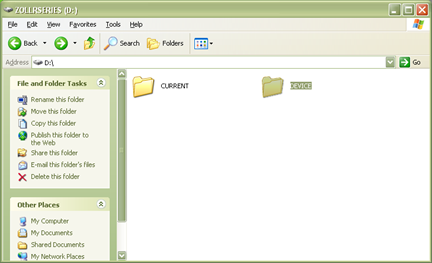
The DEVICE folder contains the Device Check history (.dck), Activity Log (.ral), and Wireless Log (.wlg). Tech Support can use these files to investigate certain defibrillator issues remotely. If a ZOLL Technical Support representative asked you to retrieve these files, please return the files to them via the method they requested (ex. email).