Introduction
The CodeWriter application supports a wide variety of barcode formats and sizes. These instructions will showcase one label printer and one barcode format that is preferred by the Code Data Deployment team. You do not need to use this exact printer or barcode format - feel free to try any combination you would like, simply test it within the CodeWriter app to ensure it's outputting the correct serial number before committing to applying them to all your defibrillators. Some customers, for example, have printed their own QR codes.
IMPORTANT CONSIDERATIONS
- The factory barcodes on the bottom of the R Series defibrillators are NOT compatible with CodeWriter.
- The factory QR codes on the top of the Zenix defibrillators ARE compatible with CodeWriter, however due to its small size and placement you may still prefer to print your own to place in a more accessible location on the defibrillators.
Printer and Tape Selection
- Label Maker: Epson LW-PX700 - preferred by the Code Data Deployment team for its minimal waste of label tape (NO trimming margins with scissors), and for the variety to materials it can print on.
- Label Tape: 1" polyester tape. Polyester is far more resistant to chemicals than vinyl, making it better suited for healthcare applications where the defibrillators are frequently wiped down with sanitizing cloths. One cassette of 1" label tape is 30ft long and can easily print barcodes for 160 (X Series/Zenix) to 185 (R Series) defibrillators following these instructions.
Instructions for the Epson LW-PX700
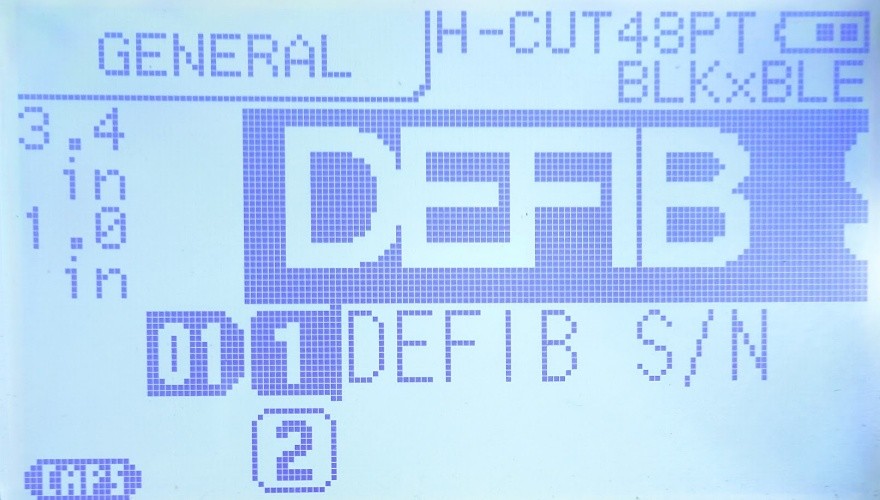
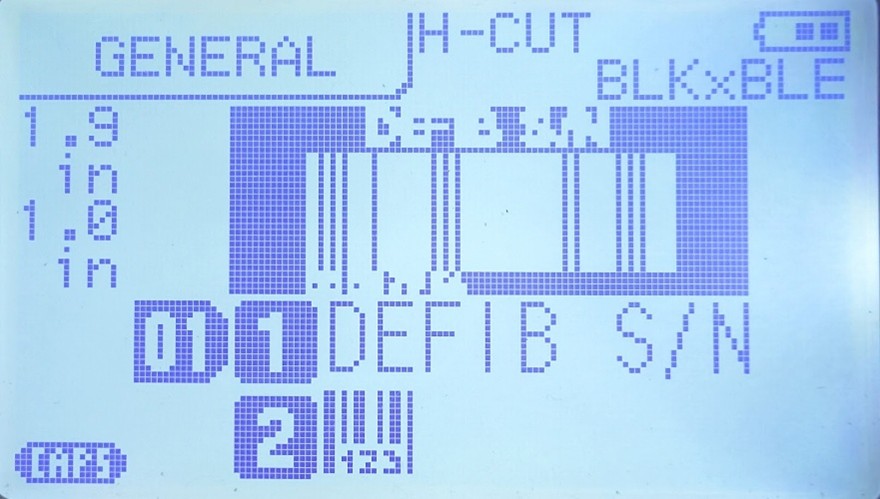
- Enter your desired text on the first line, ex: "DEFIB S/N"
- Press the enter key to move to the second line
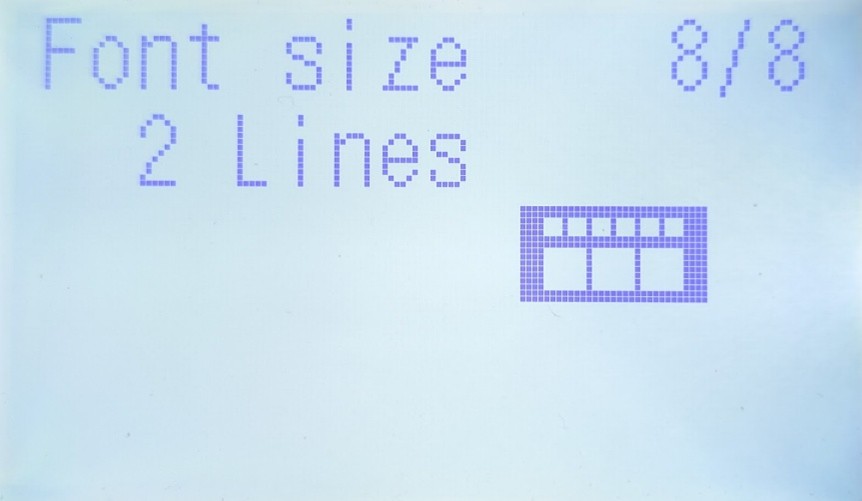
- Use the text resizing key to resize the two lines of text
- Choose Font Size 8/8 to make the top line as small as possible relative to the barcode
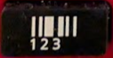
- Press the barcode key to start creating a barcode
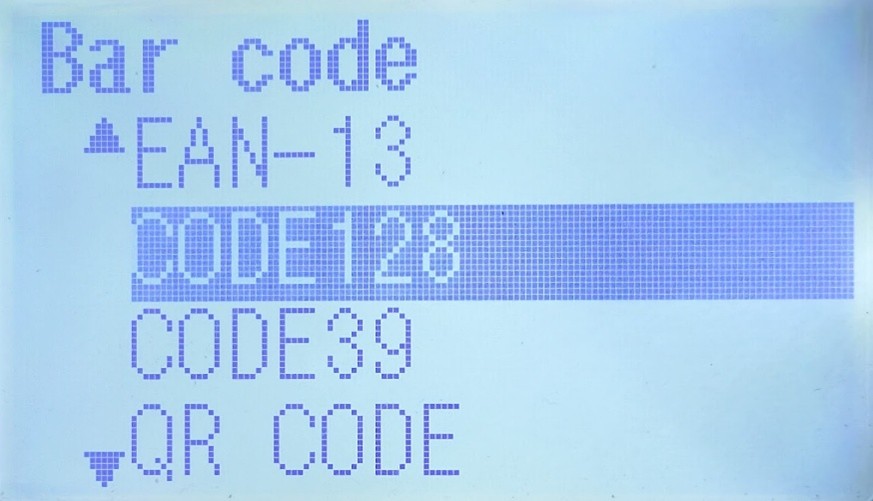
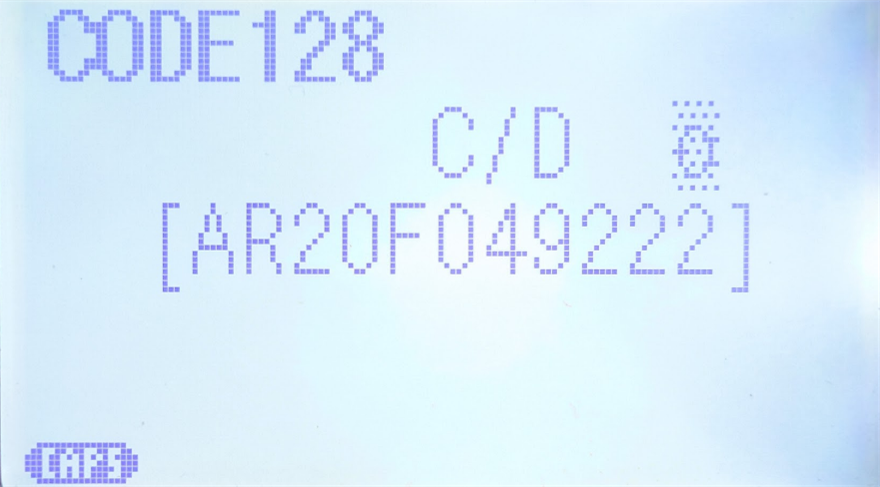
- Choose "Code 128" for the barcode format
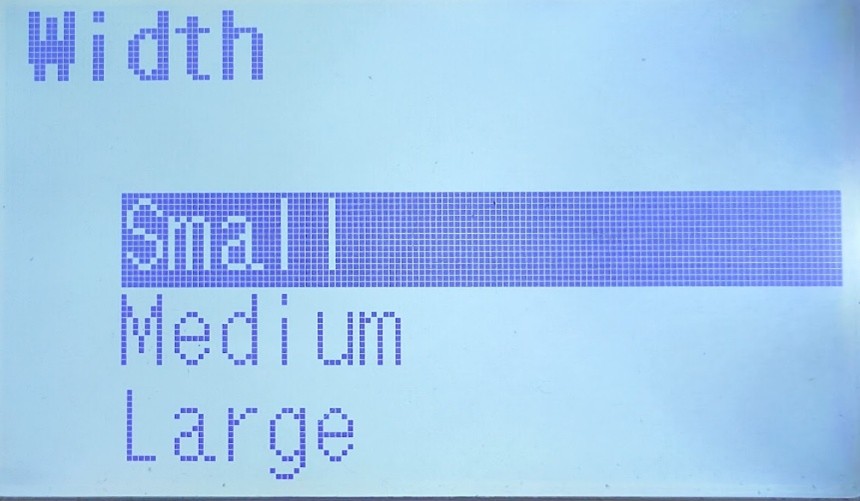
- Choose "Small" for the Width
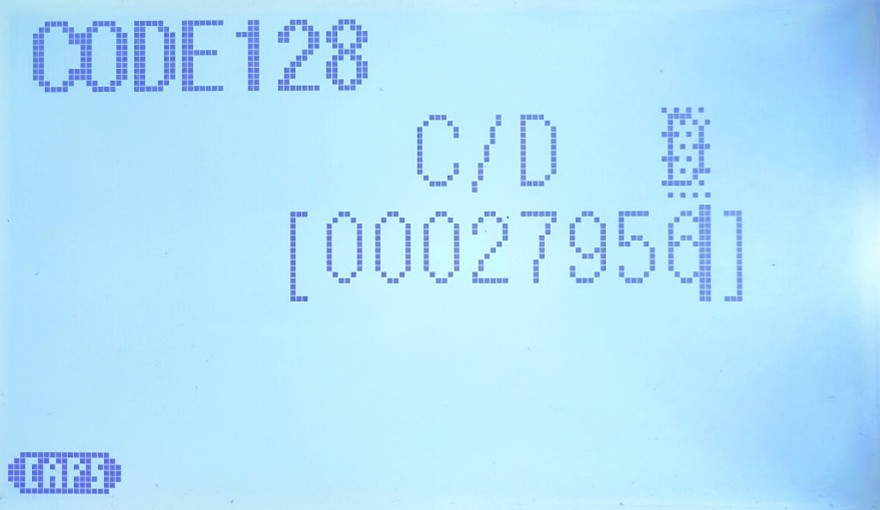
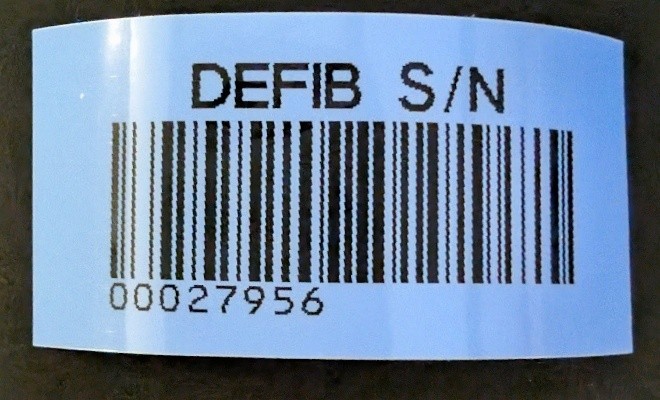
- Enter the defibrillator's serial number - NOTE: the R Series defibrillators do not send their full serial number to CaseReview! If you are making barcodes for R Series defibrillators, enter two leading zeros followed by the last six digits of the serial number. Ex: 00123456. In the picture below, the R Series' last six digits of the serial number were "027956", giving us "00027956" for our barcode.
R Series Serial Number
X Series Serial Number
- Confirm the text/barcode sizing is correct in the preview, then print your barcode label!
- To print another, simply press the barcode button again while your cursor is on the second line on screen to edit your previous barcode entry rather than having to erase it and create a new one from scratch.
- Label example for an R Series Defibrillator (1.9in long):
- Place your barcodes on your defibrillators! For most defibrillators we recommend somewhere on top where it is unobstructed by cables, other labels, or side pouches/saddlebags, however you may need to choose another location depending on your circumstances. As a general rule, try to keep this consistent across all of your defibrillators so your staff always know where to look when trying to scan the defib barcode in CodeWriter.