Your ZOLL Code Data Deployment specialist will complete the initial setup of DeviceDashboard, ensuring your defibrillators are connected and all relevant information is populated. However, any defibrillators brought online following your initial deployment will be your responsibility to set up. This guide will walk you through how to add a new defibrillator to DeviceDashboard.
- Connect your defibrillator to Wi-Fi and upload its device check history (aka readiness test history). Once the device check history has been uploaded to DeviceDashboard, the defibrillator record will be available for you to modify. This Code Data Support website has various guides on connecting your defibrillators to Wi-Fi and testing the wireless connections. For additional help, please contact ZOLL Technical Support: https://www.zoll.com/contact/customer-service
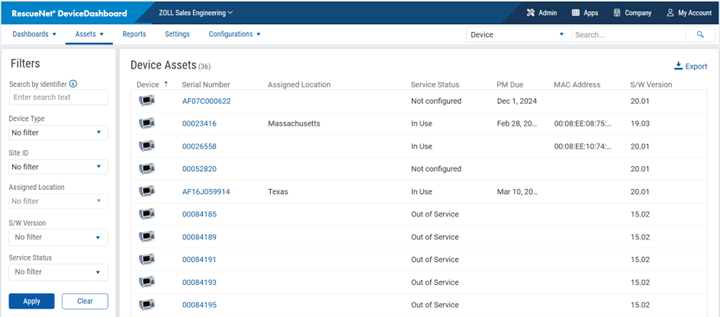
- Open ZOLL Online and DeviceDashboard’s Assets page. The Assets page displays all devices, regardless of their readiness status.
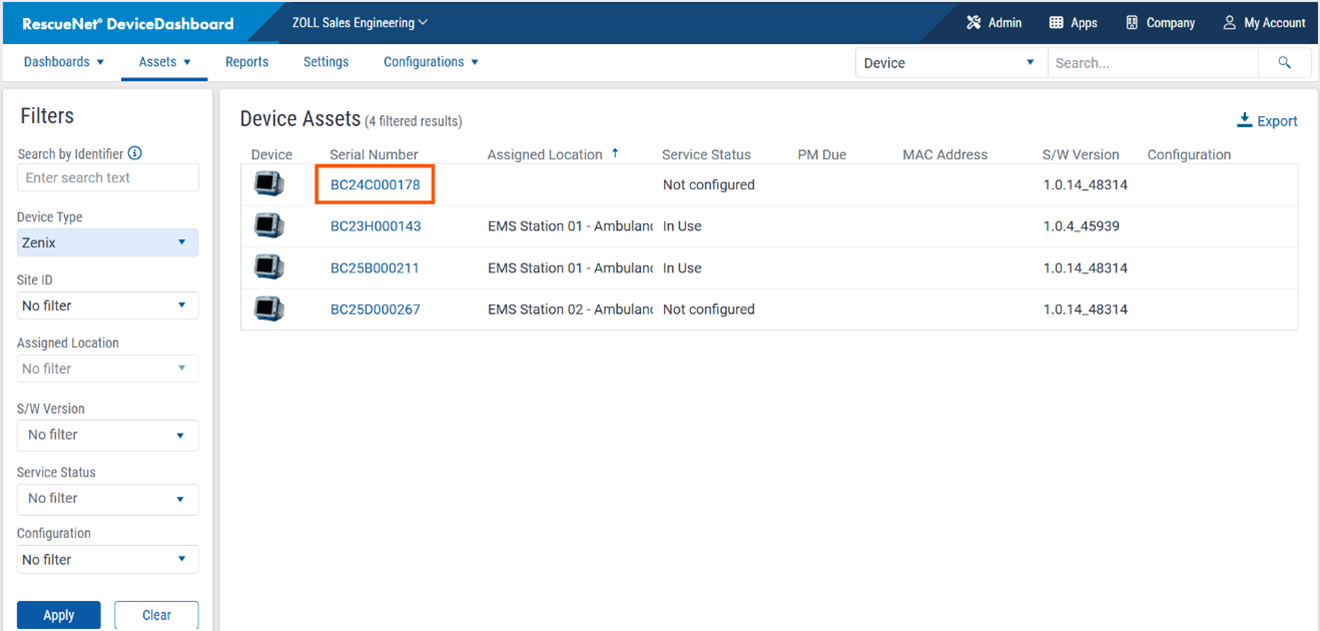
- Filter the results by Device Type if necessary, then click the column header for Assigned Location to bring devices with NO assigned location to the top of the list. Click on the Serial Number to open the defibrillator’s details page. (If you’re using Asset Tag as the primary identifier for your devices then Serial Number will be replaced by Asset Tag, click where it says “None”)
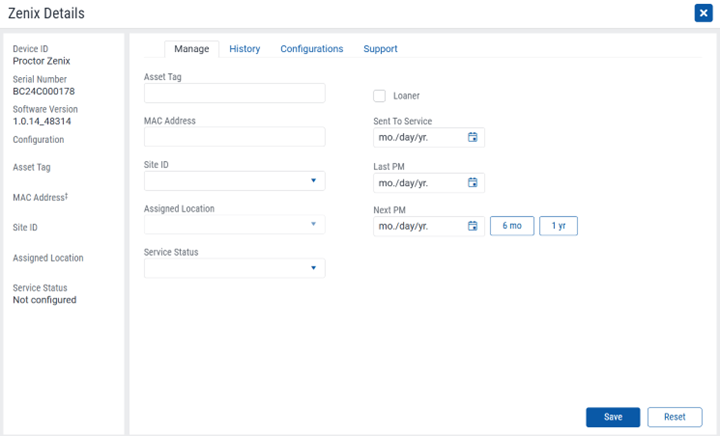
- All defibrillators that are new to DeviceDashboard will have a mostly blank details page. Some defibrillators will auto-populate the MAC Address, but no defibrillators will auto-populate any of the other fields. The information you see on the left represents all the data received from the device, including the Device ID you configured during its setup. Simply edit this screen to fill in all relevant information, including the Service Status that is appropriate for this device (ex. some customers use an “Education Defib” service status to hide them from the readiness dashboard). If you need to add a new location to the Site ID and/or Assigned Location dropdowns, or a different option to your Service Status dropdown, then one of your Company Administrators for DeviceDashboard will need to open the Settings page to add new options.
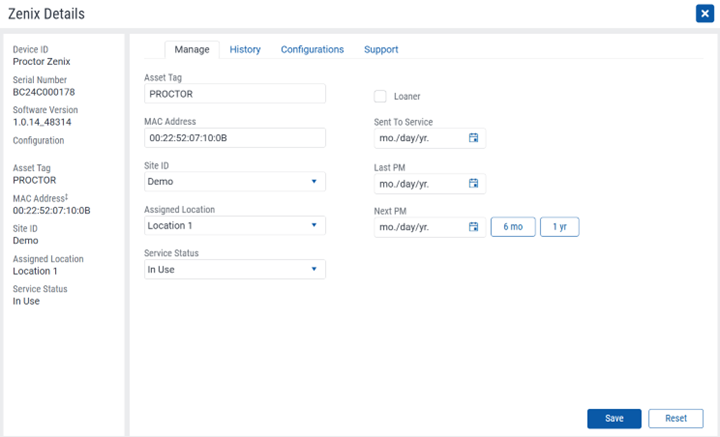
- When you are finished, click Save, and your defibrillator details should look similar to the screenshot below. Note: The Last PM and Next PM dates are optional – if you are tracking this in your existing biomed database then you do not need to duplicate the information here. These fields are meant for agencies that use 3rd party biomed who must call to schedule service in advance (most EMS agencies).
- If you added this defibrillator to an existing location, and that location has email notifications configured for that model of defibrillator, then your new defibrillator will automatically be included in future email notifications unless you set it to a Service Status that hides it from the Readiness Dashboard. If you need to modify your email notifications, a DeviceDashboard Company Administrator will need to visit the Settings page and either ADD or EDIT a notification.
- NOTE: The changes you have made will NOT be reflected in the readiness test history until the device reports a new readiness test. Changes to the location assignment in DeviceDashboard do not retroactively edit the location assignments on previously reported readiness tests, only those reported afterwards.
If you require any further assistance, please do not hesitate to contact ZOLL Technical Support: https://www.zoll.com/contact/customer-service