EXPORT TO A USB
This guide shows how to export your clinical and wireless configurations from an X-Series defibrillator to a USB drive:
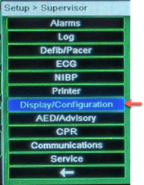
- Enter the Supervisor menu
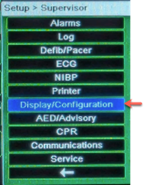
- Select: “Display/Configuration:”
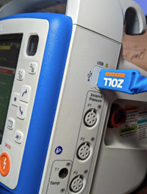
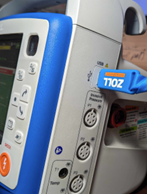
- Insert a USB drive in the USB slot located on the right side of the Defibrillator:
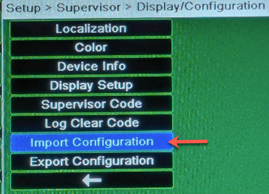
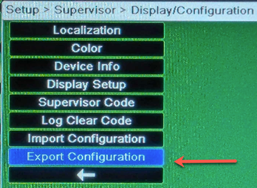
- Select: “Export Configuration”
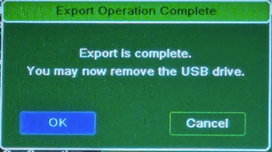
- Once the operation is complete, Select “OK”
IMPORT FROM A USB
This guide shows how to import a saved configuration from an X-Series on a USB flash drive to another X-Series. WARNING - These steps will overwrite ALL clinical and wireless configurations and replace them with the configurations saved on the USB drive.
- Enter Supervisor mode:
- Select: “Display/Configuration:”
- Insert a USB drive in the USB slot located on the right side of the Defibrillator:
- Select: “Import Configuration”
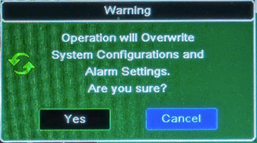
- You will receive a Warning! that this operation will overwrite current system configurations and alarms.
- Select: “YES” to proceed
- Select: “YES” to proceed
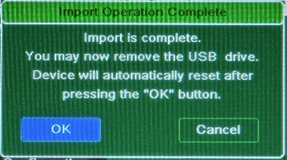
- Once the operation is complete, you will receive the following Message:
- Select “OK”
- The Defibrillator will reboot